
Blog · Troubleshooting · 8 min read
K1 Game "App Not Installed" Error: How to Fix It
Published August 29, 2026 · By the K1-Game.vip Team
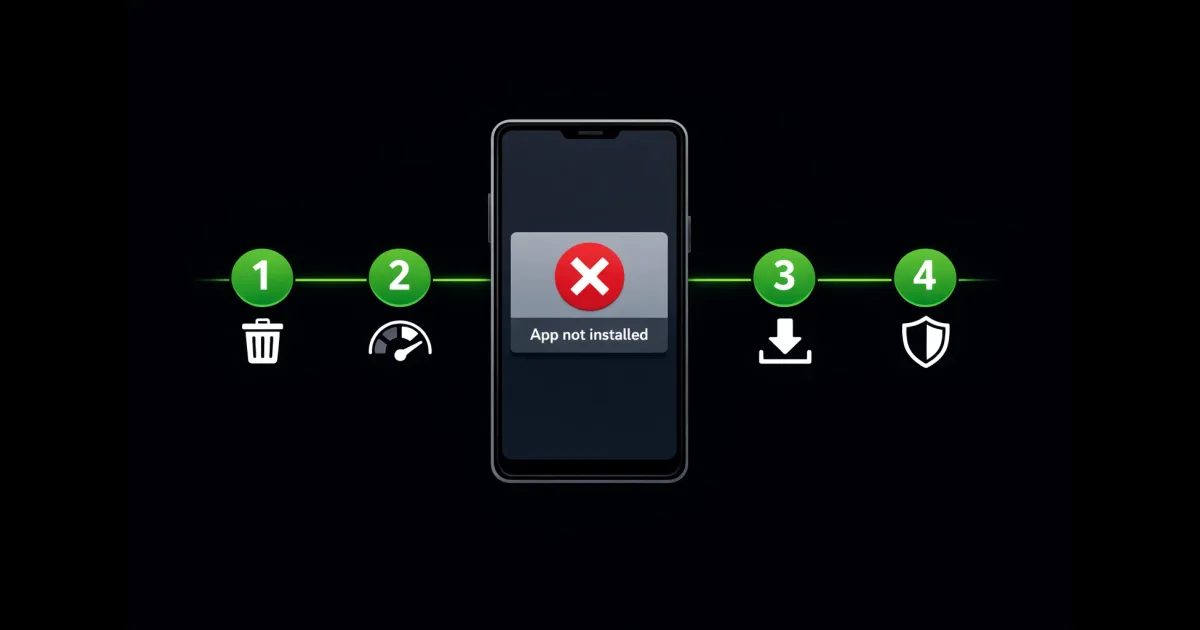
You downloaded the K1 Game APK, tapped Install, waited a few seconds, and Android threw back a grey box saying App not installed. No reason, no detail. Just a Done button.
This is one of the most common problems people write to us about, and the good news is that it is almost never a problem with your account or your money. It is your phone refusing the file. In most cases the fix takes about two minutes.
Quick answer:
Nine times out of ten, an older K1 Game build is still sitting on your phone. Go to Settings, open Apps, find K1 Game and uninstall it completely. Then install the new file. Your balance is safe — it lives on K1 Game's servers, not on your handset.
What the error actually means
Android shows the same message for several completely different problems, which is why the error feels so confusing. It does not tell you which one you have hit.
Behind that one box, the real reason is usually one of five things: an old version is still installed, the phone does not have enough free space, the downloaded file is incomplete, the browser does not have permission to install apps, or the phone is running an Android version that is too old.
The rest of this guide works through those five in the order they actually happen. Start at the top. Most people never reach the bottom.
Fix 1: Remove the old app first
This is the fix for most people, so try it before anything else.
When you install an APK, Android checks whether an app with the same name is already there. If it finds one, it compares the digital signature of the two files. If those signatures do not match exactly — which happens whenever your old copy came from a different source than the new one — Android blocks the install and shows you the App Not Installed message. It will not overwrite, and it will not explain.
- Open Settings on your phone
- Tap Apps (on some phones it is Apps & notifications, or Application Manager)
- Find K1 Game in the list
- Tap Uninstall and confirm
- Now install the new file
People hesitate at this step, and it is worth saying clearly: uninstalling does not touch your money. Your balance, deposit history and game records sit on K1 Game's servers, connected to your registered phone number, email or username. Your phone only displays them. Install again, log in with the same details, and your balance is there. If logging back in is the part that worries you, our K1 Game login guide covers all three sign-in methods.
Fix 2: Make real space on your phone
The K1 Game APK is about 72.4 MB. But that is only the download. To install it, Android has to unpack the file, write the app, and keep the original until it finishes. During those few seconds it needs roughly two to three times the download size in free space.
So having 72.4 MB free is not enough. Aim for at least 250 MB free before you start. Check under Settings, then Storage.
If you are short, the fastest wins are usually WhatsApp media (Settings → Storage and data → Manage storage inside WhatsApp), your Downloads folder, and old screenshots. Clearing a few hundred megabytes takes a minute and solves this permanently.
Fix 3: Your download is probably broken
This one catches a lot of people in Pakistan, because mobile data here drops for a second or two more often than we notice. If the connection blinks while the file is downloading, the download finishes early. Your phone shows a file. It looks complete. It is not.
A half-finished APK will either fail to install or throw a parse error. And because the file appears in your folder with a normal name, most people try installing the same broken file three or four times before suspecting it.
- Open your File Manager and go to Downloads
- Delete every K1 Game file you find there, including ones named like
k1game(1).apk - Connect to Wi-Fi if you can, or wait until your signal is steady
- Download the file once more, in one go
- Check the size — it should be close to 72.4 MB. If it is far smaller, the download failed again
That size check is the quickest way to know. A 5 MB or 20 MB file is not the app. Get the file from our download page, which also lists the version and size you should be seeing.
Fix 4: Allow installs from your browser
K1 Game is not on the Play Store, so your phone treats it as an app from an unknown source. Android will ask permission the first time. If you tapped past that prompt without reading it, the install quietly fails.
On Android 8 and newer this permission is set per app, not globally. So you allow it for Chrome, or for your file manager, rather than for the whole phone:
- Settings → Apps → Special access (sometimes under a three-dot menu) → Install unknown apps
- Pick the app you downloaded with — usually Chrome or your file manager
- Turn on Allow from this source
You only do this once per app. It is a normal Android setting, not a security hole, and it is required for any app installed outside the Play Store.
About that Play Protect warning
When you install any app from outside the Play Store, Google Play Protect shows a warning. This happens with every sideloaded app — banking tools, work apps, everything — and does not mean the file is infected.
You can continue past that single warning. There is usually a More details option, then Install anyway.
Do not permanently switch Play Protect off.
Some download sites tell you to disable it completely before installing. That instruction is the clearest sign you are on a bad site. A real app asks for one permission, once. It never asks you to switch off the scanner whose entire job is checking files for malware. Continue past the single warning if you want — but leave the protection on for everything else you install.
We go into the fake-download-page pattern in more detail in our mod APK safety guide, including the permissions a fake file asks for that a real one never does.
"Parse error" is a different problem
If your phone says There was a problem parsing the package, that is a slightly different failure and it narrows things down nicely.
App Not Installed means Android read the file and then refused it. Parse error means Android could not read the file properly at all. That points at the download almost every time, so go straight to Fix 3 above: delete the file, download it again on a stable connection, check the size.
The other cause of a parse error is an Android version that is too old to open the package, which is the next section.
Check your Android version
K1 Game V0.7.52 needs Android 5.0 or higher. To check yours, open Settings, go to About phone, and look for Android version.
If your phone is on Android 4.4 or below, no amount of re-downloading will help — the file genuinely cannot install, and hunting for an older build is not a real solution either. We explain why in our guide to old K1 Game versions.
If nothing here worked
Two things left to try, in this order:
Restart the phone. Sounds too simple, but Android sometimes keeps a lock on the old app package even after you uninstall it. A restart clears that. Then install again.
Try a different browser to download. Some browsers, especially built-in ones from the phone manufacturer, handle large downloads poorly and quietly truncate the file. Chrome is usually the most reliable.
If you are still stuck after all of this, it is worth contacting support rather than downloading files from random sites. K1 Game's in-app live chat is fastest once you are in, and the listed number for Pakistan is 44444-0800. Our support guide explains which channel to use and how to spot the fake "K1 Game support" accounts on WhatsApp.
Frequently Asked Questions
Will I lose my K1 Game balance if I uninstall the app?
No. Your balance and game history are stored on K1 Game's servers, not on your phone. They are tied to your registered phone number, email or username. Uninstalling the app removes only the app files. When you install again and log in with the same details, everything is exactly where you left it.
Why does it say App Not Installed even though I have storage?
The most common reason is that an older K1 Game build is still on the phone. Android refuses to install a new APK over an existing one when the signatures do not match. Uninstall the old app completely from Settings, then install the new file. This single step fixes most cases.
What is the difference between App Not Installed and Parse Error?
"App Not Installed" usually means Android tried to install and something blocked it, most often a leftover old version or low storage. "Parse Error" means Android could not even read the file properly, which almost always points to a broken or incomplete download. For a parse error, delete the file and download it again.
Should I turn off Play Protect to install K1 Game?
No, do not switch it off. Play Protect will show a warning for any app installed outside the Play Store, and you can choose to continue past that one warning without disabling protection for every future app. Any download page telling you to permanently turn Play Protect off is a warning sign, not normal advice.